Git for Beginners: Basics and Essential Commands
content
What is Git
Why Git is Used
Git Basics and Core Terminologies
Common Git Commands
When I started learning web development, I quickly realized that writing code is only half the job. The real challenge is managing that code—especially when changes keep happening again and again. This is where Git becomes extremely useful. Git is a tool that helps developers keep their work organized and safe while coding.
what is Git?
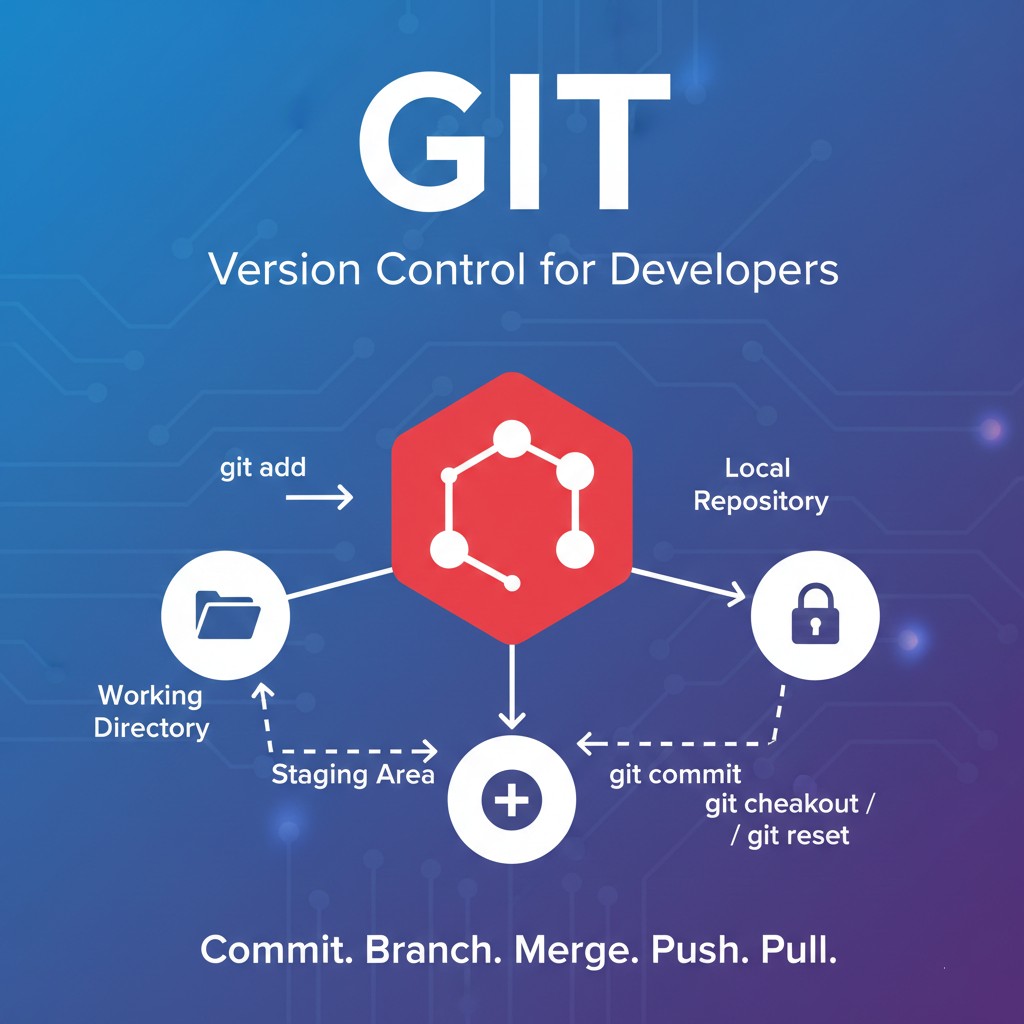
Git is a tool that helps you manage changes to your code over time. It is termed a distributed version control system because of its behavior to allow multiple people to work on the same project, even if they are not connected to a common server.
It was created by a person named Linus Torvalds in 2005 for the development of the Linux kernel. Torvalds developed Git in just a few days to meet the urgent need for a reliable, distributed version control system. He named it "Git," a British slang term for an unpleasant person—partly as a joke, partly because he named projects after himself (like Linux). Today, Git is the most widely used version control system, with over 93% of developers using it .
Why Git is Used
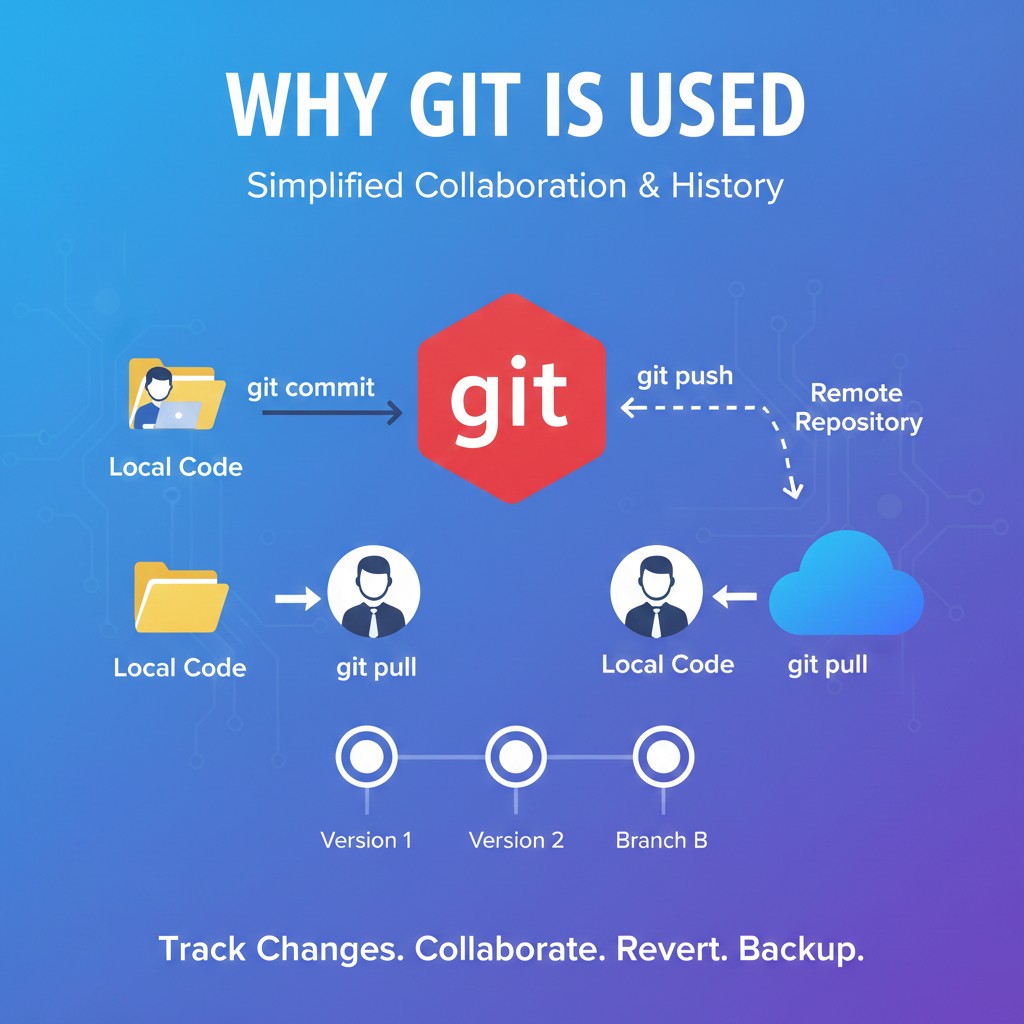
Git is widely used because it makes a developer’s life much easier. Some of the main reasons are:
Reliable history: Every commit is saved, so changes can be checked, reverted, or cherry-picked anytime.
Safe experimentation: Branches allow developers to try new features or fix bugs without affecting the main code.
Efficient collaboration: Teams can work independently, share changes through push/pull requests, and merge work smoothly.
Fast and lightweight: Most operations like commits, diffs, and logs run locally, making Git very fast.
Flexible workflows: Supports different workflows such as feature-branch, Gitflow, trunk-based, and fork-based development.
Accountability and traceability: Commit history and metadata help track who made what changes and why.
Strong tooling ecosystem: Works well with GUIs, CI/CD tools, code hosting platforms, and automation tools.
Easy recovery: Lost work can be recovered using reflog, tags can be created for releases, and rollbacks are simple.
Git Basics and Core Terminologies
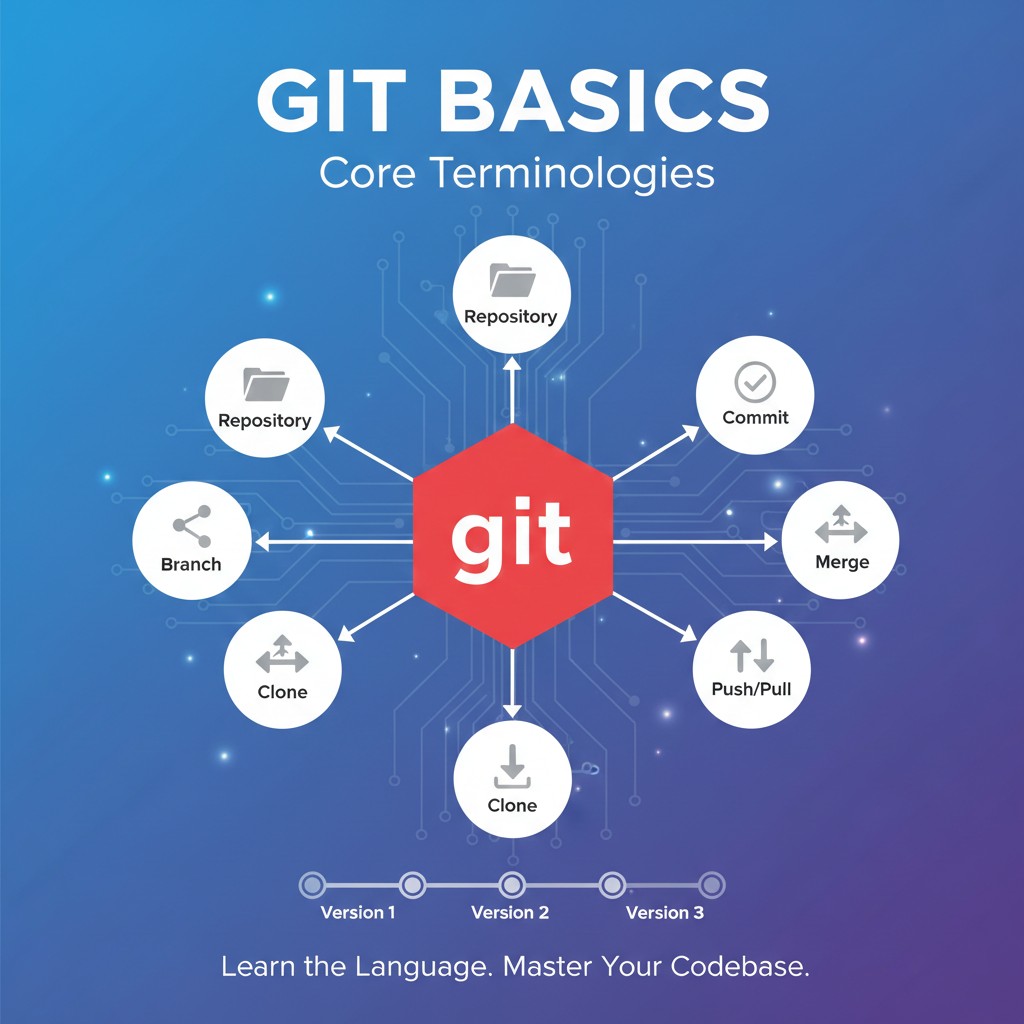
Repository ( Repo )
Repository is a collection of files and directories that are stored together. The working directory contains all the files of the project, including tracked and untracked files. A Git repository helps manage and track changes in these files over time.
Branch
A branch allows you to work on a new feature without affecting the main project. The default branch is usually called main or master. Branches allow developers to work on new features without affecting the main code.
Commit
A commit is like taking a snapshot of your project at a certain point in time. Writing a clear commit message is a good habit because it helps us and others understand the project history later.
Merge
Merge is a command that is used to merge the changes from one branch to another branch. We can merge the changes from the beta branch to the main project branch using the command git merge beta
Git Ignore
Git ignore is a file used to specify which files or folders Git should ignore. Ignored files are not added to the staging area and do not affect already tracked files.
Pull
Pull is a command that is used to pull the changes from the remote repository to the local repository. We can pull the changes from the remote repository to the local repository using the command git pull. Git Pull is used to fetch changes from a remote repository and automatically merge them into the current branch.
Push
Push is a command that is used to push the changes from the local repository to the remote repository. We can push the changes from the local repository to the remote repository using the command git push. A git push command has two arguments one is the repository and the other is the branch name to which you are going to push the changes.
Status
Status is a command that is used to show the status of the local repository. We can show the status of the local repository using the command git status. A status can be staging area, unstaged changes, staged changes, untracked files. It shows the working tree status of the current repository.
Checkout
Checkout switches your working directory to a different branch or commit, updating the files accordingly. It allows developers to safely explore or work on different parts of a project without affecting the main code.
Common Git Commands
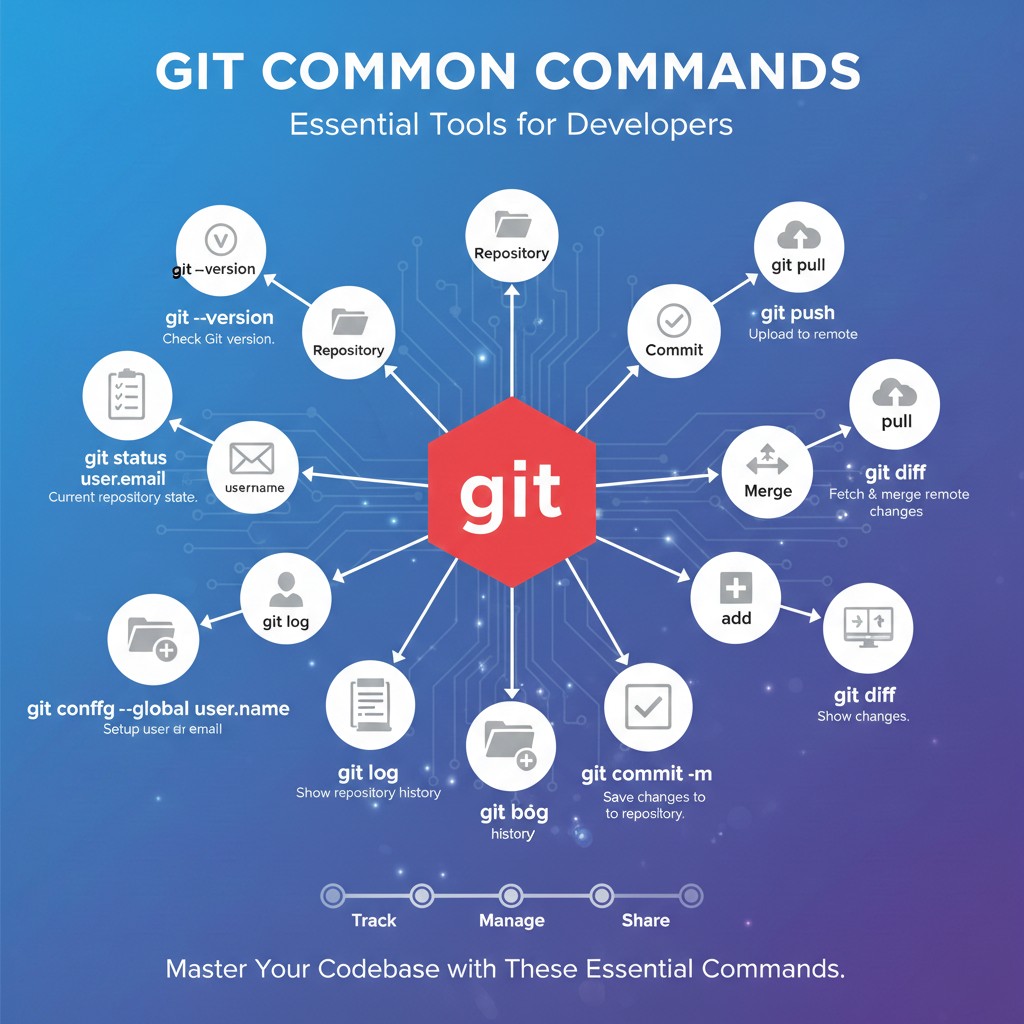
git status - To see the current state of your repository .
git --version - To check your git version .
git config --global user. email "your-email@example.com" - To setup your email .
git config --global user.name "Your Name" - To set up username .
git init - To create a new folder on your system and initialize it as a git repository.
git log - To show the history of your repository.
git commit -m "commit message" - Creates a commit with a message describing the changes.
git add – Adds file changes to the staging area .
git merge – Integrates changes from one branch into the current branch.
git diff – Shows changes between working directory, staging area, or commits.
git push – Uploads local commits to a remote repository .
git pull – Fetches and merges changes from a remote repository into the current branches .
Connect with me on :
Comments
Join the discussionNo comments yet. Be the first to comment.